Aiseesoft Anock – Desbloqueador de Android
 100% seguro. Sem anúncios.
100% seguro. Sem anúncios.
conteúdo
Forgot your OnePlus screen lock and can't access your phone? You may be able to erase the device using Recovery Mode or Google's remote erase service. A desktop unlocking tool may offer another option, depending on your model and software version. The right method depends on whether you can access the phone, whether it's online, and whether you know the Google account previously linked to it.
Resposta rápida:
Before choosing a method, keep these points in mind:
1. Back up your data if possible. factory reset generally erases locally stored photos, files, apps, and settings. Data already backed up or synced may be recoverable.
2. Charge your phone. Aim for at least 50% battery, or connect the phone to a reliable power source if the manufacturer permits it.
3. Check your Google account details. Factory Reset Protection (FRP) bypass may require the Google account previously associated with the device after an unauthorized or recovery-based reset.
4. Selling or giving away the phone? If you can still access it, follow the manufacturer's official account-removal and reset instructions to avoid leaving the device linked to your account.
5. Confirm your model and software version. Recovery menus and button combinations can differ between OnePlus devices and software releases.
Aiseesoft Anock – Desbloqueador de Android é uma ferramenta de desbloqueio poderosa que ajuda você a remover o bloqueio de tela do Android e recuperar o acesso ao seu telefone Android. Então, se o seu telefone OnePlus estiver bloqueado, você pode usar este produto para obter uma redefinição de fábrica sem uma senha. Enquanto isso, dentro deste programa de desbloqueio, temos uma interface intuitiva e instruções fáceis de seguir. Esses fatores garantem um ambiente amigável para remover qualquer bloqueio de tela do Android sem esforço.

Downloads
100% seguro. Sem anúncios.
100% seguro. Sem anúncios.
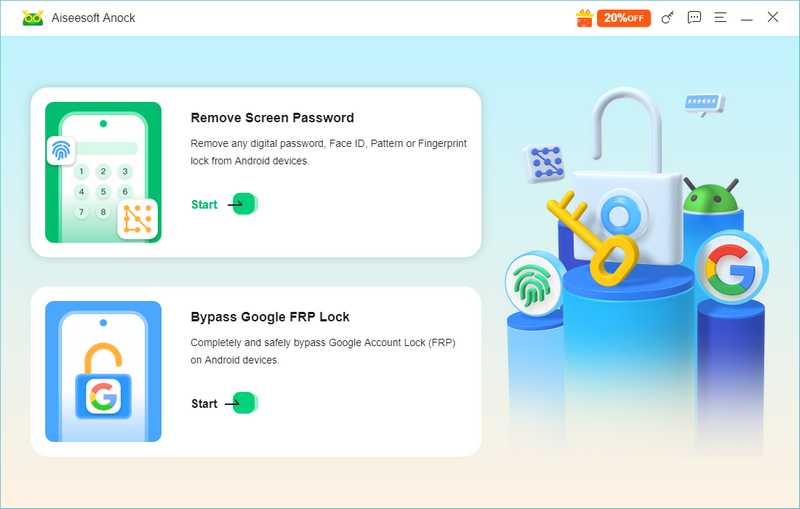
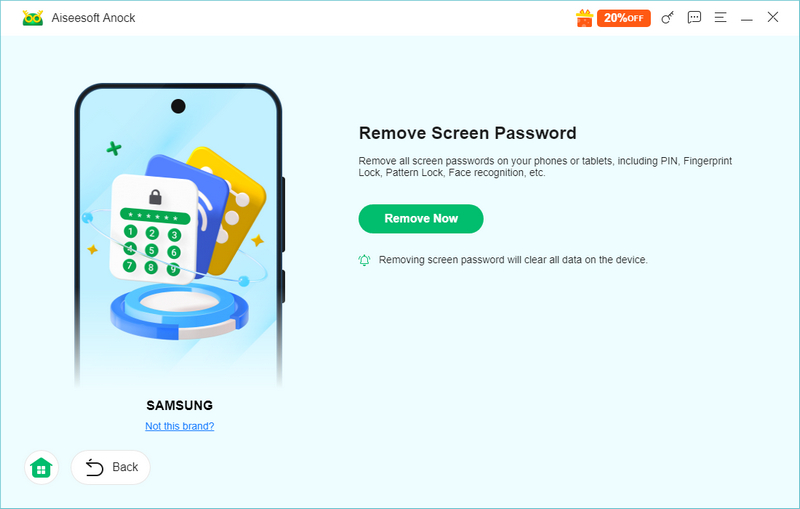
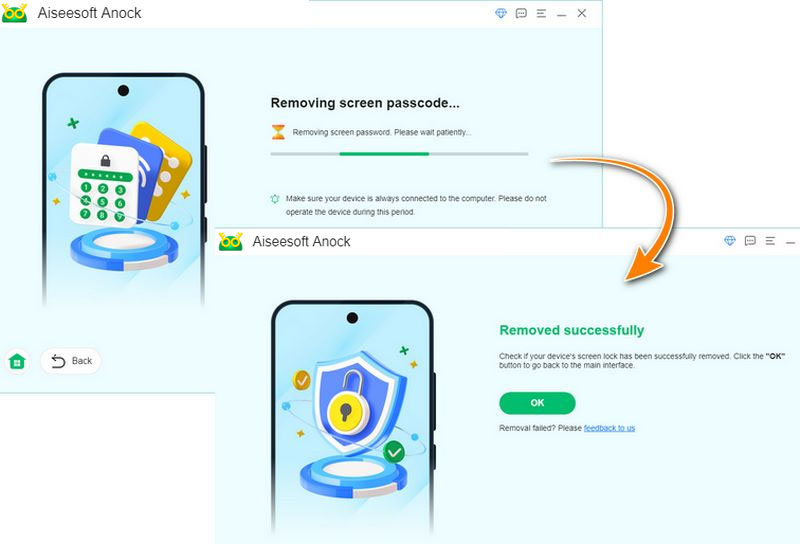
The whole process of OnePlus factory resetting without password with Aiseesoft Anock -Android Unlocker is quick and easy, which is why it is recommended in the first place.
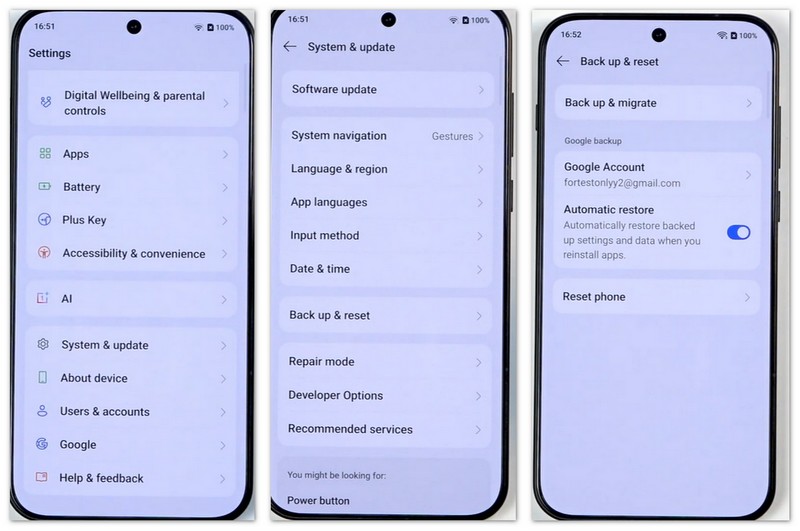
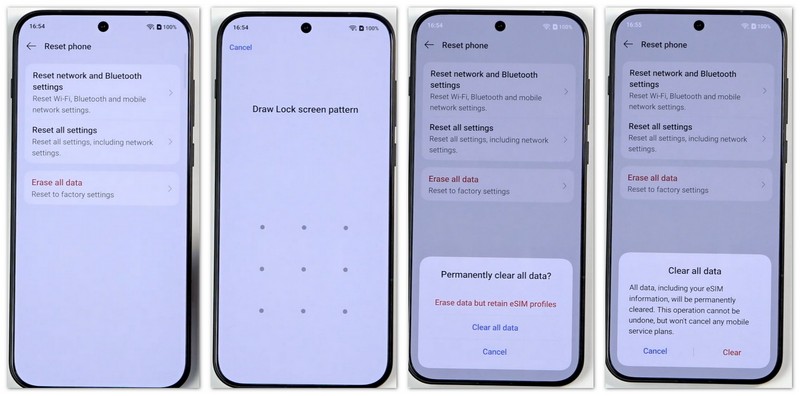
If you can still unlock your OnePlus phone, resetting it through Settings is usually the most straightforward option. However, this is not a password-free method if the system asks you to verify your screen lock. Let me show you how to factory reset in Settings; I'll use the OnePlus 15 as an example.
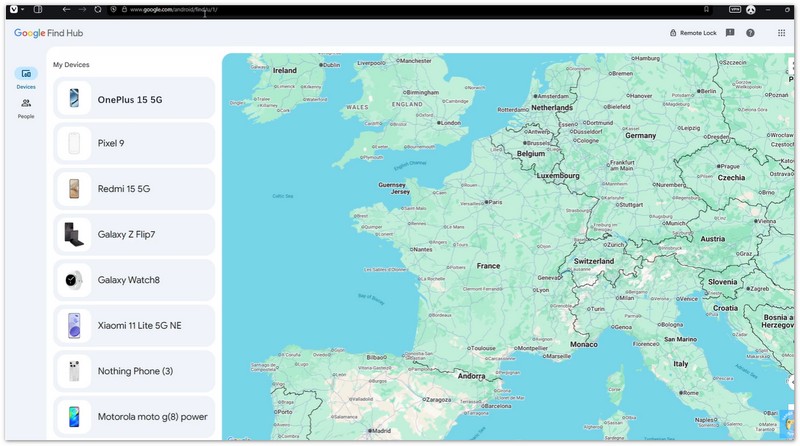
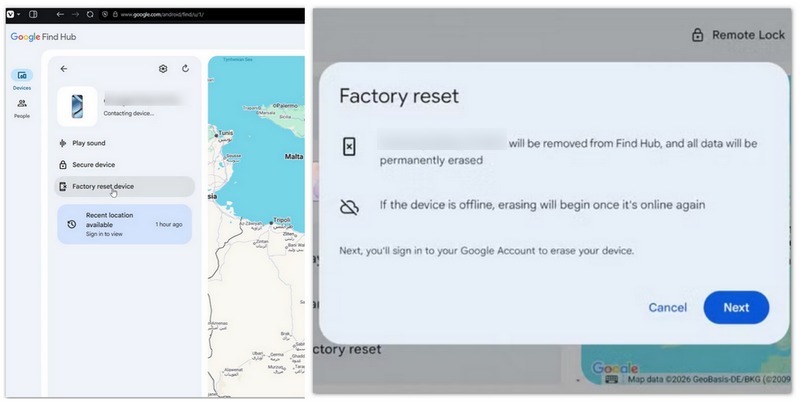
Google Find Hub, formerly known as Find My Device, may allow you to erase your OnePlus phone remotely. This is useful if you cannot access the handset but can still sign in to the Google account associated with it.
Antes de começar: Your phone must meet Google's requirements for remote finding and erasing. These can include being powered on, connected to the internet, signed in to the relevant Google account, and having the necessary Find Hub settings enabled; otherwise, the "Erase device" option won't appear.
O Modo de Recuperação é uma função que permite que você solucione problemas e resolva problemas com seu telefone OnePlus. Ele pode instalar atualizações, apagar dados e executar reinicializações forçadas. O Modo de Recuperação pode ser especialmente útil se seu telefone não ligar ou se você não conseguir lembrar sua senha e quiser apagar dados.
Antes de você começar: Note that 1) a factory reset will permanently delete all locally stored data; 2) After the reset, you must sign in with the Google account previously linked to the device to set it up. Then, you can refer to the model-specific instructions below:
OnePlus 7 and Newer Models:
OnePlus 6 & 6T:
Older Models (or Devices via Fastboot):
Observação: Options and menu layouts may vary depending on your software version (e.g., OxygenOS vs. ColorOS). If your device requires a password in Recovery Mode that you do not know, please consult the official OnePlus Support Center for assistance.
O que é uma reinicialização suave?
Uma reinicialização suave é uma reinicialização de dispositivo, como um smartphone, tablet, laptop ou computador pessoal (PC). A ação fecha aplicativos e limpa dados na memória de acesso aleatório (RAM). Dados não salvos podem ser perdidos, mas os dados armazenados no disco rígido, aplicativos e outras configurações não serão afetados.
É possível fazer uma reinicialização forçada em telefones OnePlus?
Sim, você pode fazer um hard reset em um telefone OnePlus. No entanto, você deve fazer backup dos seus dados com antecedência se não quiser perdê-los. Desligue o telefone e pressione os botões de diminuir volume e ligar/desligar ao mesmo tempo até que o telefone vibre e o Android Recovery apareça na tela. Após selecionar as opções, aguarde alguns minutos para que o processo de reinicialização seja concluído.
Como redefinir o OnePlus de fábrica usando botões?
Desligue seu telefone. Então, pressione e segure o botão de energia e o volume para cima por cerca de 20 segundos até que o telefone inicialize no Bootloader. Uma vez aqui, selecione para reiniciar o telefone usando o botão de volume para navegar e o botão de energia para selecionar.
Conclusão
Isso é tudo sobre o OnePlus reset de fábrica sem senha. Se você esqueceu sua senha OnePlus e quer desbloquear e redefinir seu telefone para as configurações de fábrica sem uma senha, baixe o Aiseesoft Android Unclocker gratuitamente. Se você redefinir seu telefone OnePlus com a ajuda dos processos mencionados acima, comente abaixo e compartilhe sua experiência. Adoraríamos ouvir isso.
 A maneira mais fácil de recuperar dados do Android após a redefinição de fábrica
Pressione o botão de reset de fábrica sem cuidado? Deseja recuperar os contatos do telefone Android após a redefinição de fábrica? Não se preocupe, tente o caminho deste post para obter a resposta mais fácil.
 Como redefinir o telefone/tablet Android para as configurações de fábrica
Quer saber como redefinir o telefone Android de fábrica? Leia este post e aprenda a maneira fácil e rápida de redefinir o telefone Android quando bloqueado/congelado ou sem senha.
 Como fazer hard reset ou reset de fábrica em um telefone Android
Como redefinir um telefone Android? Este artigo apresenta a você o que é um hard reset no Android e como fazer um hard reset no telefone Android.
Compatível com todas as versões do sistema operacional Android, este desbloqueador oferece uma maneira fácil e segura de remover qualquer tipo de bloqueio de tela e ignorar o FRP rapidamente.
100% seguro. Sem anúncios.
100% seguro. Sem anúncios.

*Campo obrigatório
*Por favor, insira um e-mail válido